
A modern multifunction printer is a networked computer with storage, user accounts, scan destinations and access to business documents. Treating it as a harmless appliance leaves a gap in otherwise careful security practices.
Security should be evaluated during selection, configured during installation and reviewed throughout the device’s life. Use this checklist with internal IT and the copier provider before comparing final multifunction copier proposals.
1. Inventory every device
Record model, serial number, location, IP address, firmware version, responsible department and support provider. Include smaller multifunction printers, not only the main floor-standing copier. An unmanaged device is difficult to patch or retire safely.
2. Change default credentials
Default administrator passwords and shared credentials should be replaced during deployment. Use unique credentials, restrict administrative access and document a secure recovery process.
3. Apply supported firmware updates
Ask how the manufacturer publishes security notices, how updates are tested and who is responsible for installation. Choose equipment with a support horizon that matches the expected ownership or lease term. The available copier brand options should be compared on supportability as well as output features.
4. Disable unused services and protocols
Turn off features the organization does not use, such as unnecessary remote-management services, legacy protocols or direct printing paths. Fewer exposed services mean fewer settings to monitor.
5. Encrypt communications
Use supported secure protocols for device management, printing, scanning and email delivery. Replace expired or self-signed certificates where organizational policy requires trusted certificates.

6. Segment and restrict network access
Place printers in an appropriate network segment and limit which systems can reach administrative interfaces. Avoid exposing device management directly to the public internet. Coordinate firewall and access-control changes with IT rather than accepting a broad “make it work” rule.
7. Configure user authentication
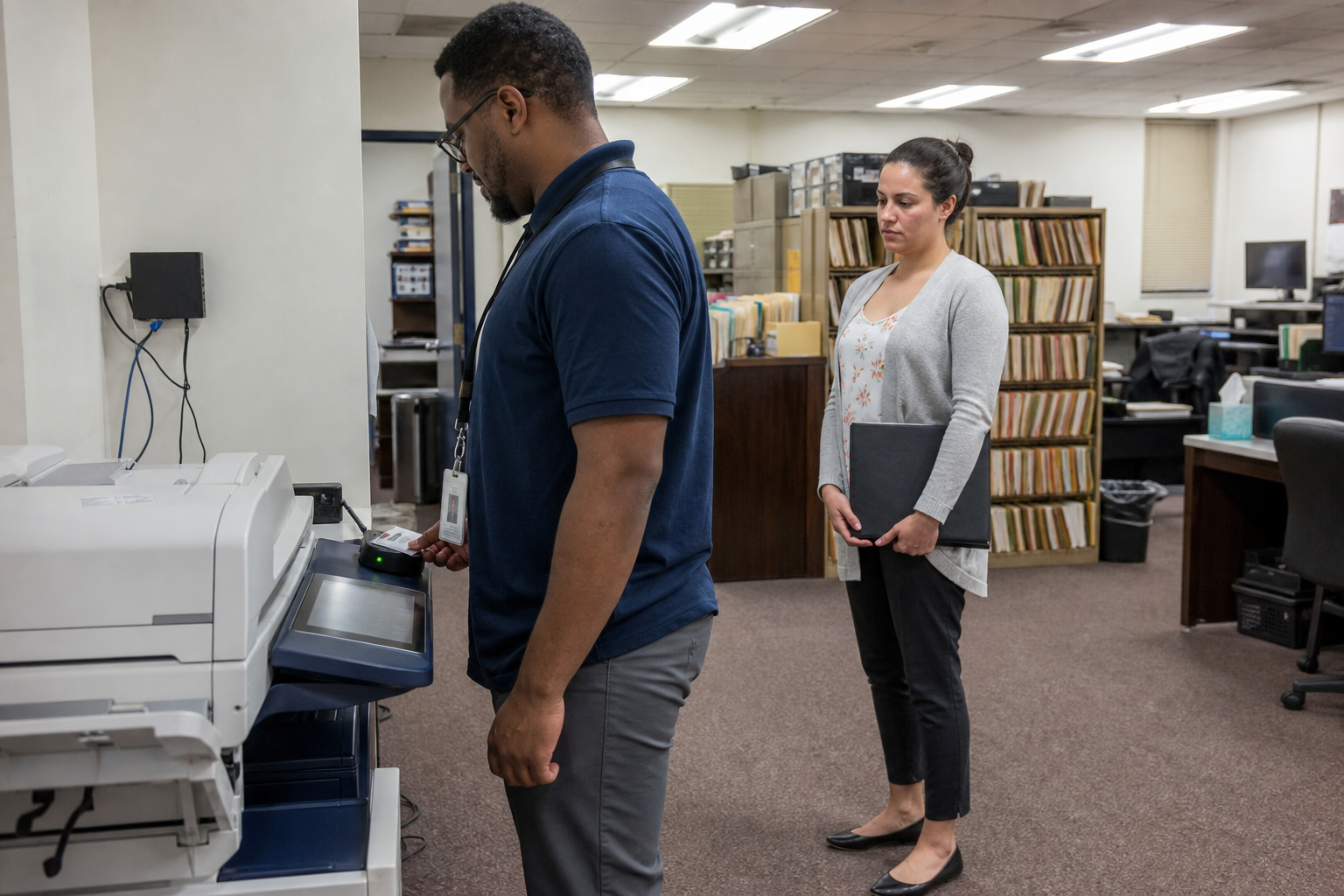
Badge, PIN or directory-based authentication can protect sensitive workflows and provide accountability. Use the least burdensome method that fits the risk. A public-facing reception printer and a copier handling legal or medical records do not necessarily need the same controls.
8. Use secure print where documents are sensitive
Held jobs released at the device reduce the chance that payroll, personnel, financial or client documents sit unattended in an output tray. Train users on the feature and set sensible expiration for abandoned jobs.
9. Control scan destinations
Review email, network folder, cloud and USB scanning. Remove obsolete address-book entries, restrict destination editing where needed and make sure authentication does not rely on an employee account that may later be disabled.
10. Protect stored data
Determine whether the copier stores jobs, address books or temporary image data and what encryption and overwrite controls are available. Configuration varies by model and option. Document the chosen settings rather than assuming a hard drive automatically protects itself.
11. Log and review meaningful events
Where the device and business risk justify it, retain administrative, authentication and security-relevant logs. Excessive logging that nobody reviews adds little value; define what would trigger investigation.
12. Plan secure retirement on day one
Before a copier is returned, sold or recycled, remove address books, credentials and stored data using the manufacturer’s supported process. Obtain documentation when required by policy or regulation. Lease-return logistics should leave enough time for secure decommissioning.
Assign responsibilities clearly
The dealer may install firmware and device options, while internal IT owns credentials, network controls and identity integration. Put the boundary in writing. Include security tasks in the service review so they do not disappear after installation.
Frequently asked questions
Do office copiers store copies of documents?
Many multifunction devices use internal storage for processing, queues, apps or address books. Storage behavior and protections vary by model and configuration, so verify the specific device.
Should a copier be placed on a separate network?
Network segmentation is commonly appropriate, but the design should follow the organization’s security architecture and printing requirements. IT should set and test the access rules.
What is secure print?
Secure print holds a job until an authorized user releases it at the device, usually with a PIN, badge or account login.
Who should install copier firmware updates?
Assign responsibility explicitly to internal IT, the service provider or a coordinated process. Updates should come from the manufacturer and be tested for compatibility with required workflows.