How to clean a commercial office copier
To clean a commercial office copier, start with powering off and wiping the exterior with a microfiber cloth and mild cleaner. Clean glass platen and scanner with glass cleaner. Clear paper paths of dust using compressed air. Replace toner carefully to avoid spills. Clean rollers with isopropyl alcohol. Sanitize touchscreens with electronics wipes. Do this monthly to prevent jams and maintain quality. Annual pro service handles internal cleaning. Use genuine supplies for best results.
Last Updated: February 14, 2026
Related topics: how to clean commercial office copier, office copier cleaning guide, clean copier glass platen, paper path clean office copier, toner spill clean copier, roller clean isopropyl copier, touchscreen sanitize office copier, monthly copier cleaning tips, pro service internal copier clean, genuine cleaner copier brands, prevent jam copier cleaning, improve quality copier clean, reduce downtime office copier, staff train copier cleaning, commercial copier maintenance clean
Compare Copier Prices NowWhat operators often misunderstand about multifunction copiers
Copier uncertainty typically appears when print demand increases beyond initial expectations. Multifunction systems require alignment between department usage and rated capacity. Color usage can double long-term operating expense if not monitored correctly. Reviewing office copier lease pricing helps establish realistic budget expectations early.
Many copier contracts include escalation clauses that affect total cost of ownership. Clear copier guidance supports smarter long-term planning.
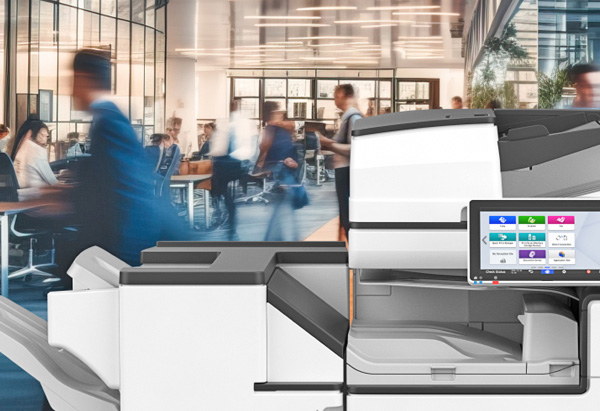
How to clean a commercial office copier
Expert Answer: Cleaning a commercial office copier regularly keeps it running smoothly and extends life. Power off and unplug first for safety. Wipe the exterior with a soft microfiber cloth and mild non-abrasive cleaner—avoid harsh chemicals that damage finishes. The glass platen and document feeder need glass cleaner on a lint-free cloth for streak-free scans. Use compressed air to blow dust from paper paths and trays, preventing jams. Toner areas require care—remove cartridges gently, clean spills with a vacuum (no cloths), and use toner-specific wipes if needed. Rollers and belts get isopropyl alcohol on a cloth for better grip. Touchscreens clean with electronics-safe wipes to remove fingerprints without scratching. Do exterior and glass weekly, internals monthly based on volume. Annual professional service deep cleans hard-to-reach parts like fusers. Genuine brand cleaners from Canon or Xerox prevent damage. Proper cleaning reduces downtime, improves print quality, and avoids costly repairs. Train staff on basics for consistent care.